WordPress mueve una parte enorme de las webs que visitas cada día, y aprender a usarlo es una de las formas más directas de crear páginas web sin saber programar. El problema no es la falta de información, sino el exceso: miles de tutoriales sueltos que no siguen un orden. Esta guía te da una ruta clara para aprender WordPress desde cero, en cinco etapas, de la instalación a tu primera web publicada.
The essentials in 30 seconds
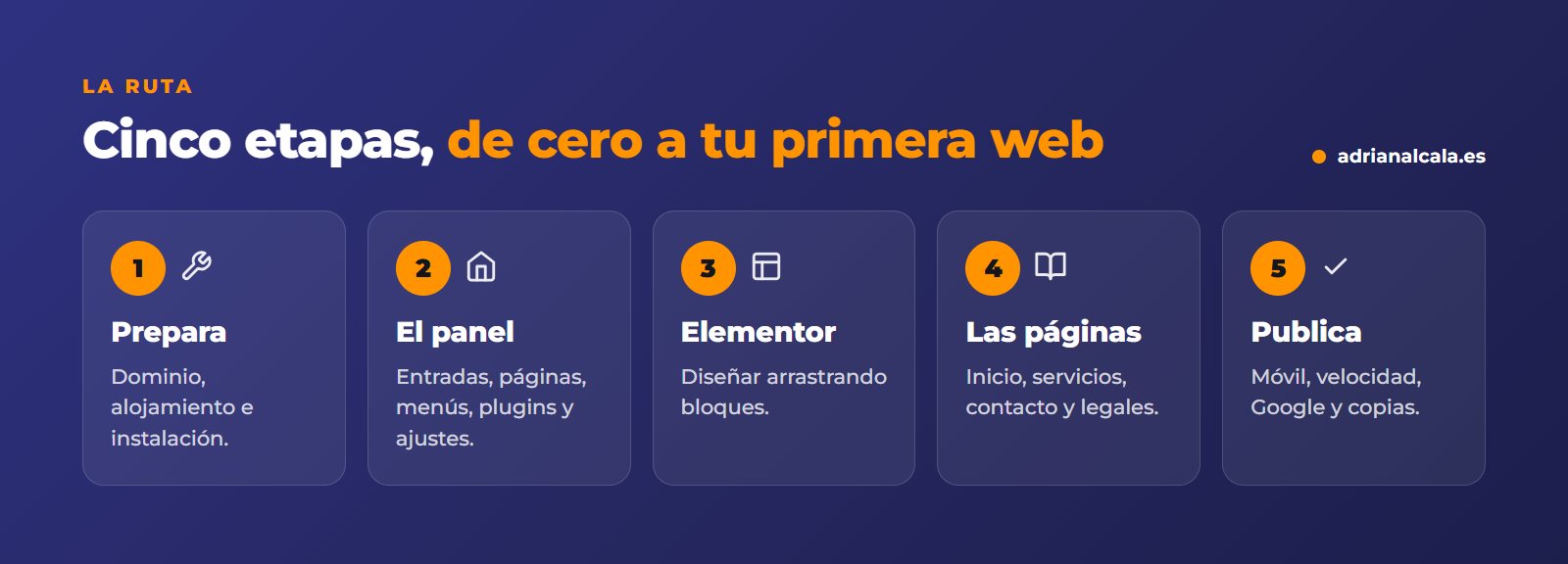
- Aprende en orden: preparar el entorno, entender el panel, diseñar, crear las páginas básicas y publicar.
- Para empezar, usa WordPress.org instalado en tu propio alojamiento: es el que usan las webs profesionales.
- With Elementor diseñas arrastrando bloques y viendo el resultado al momento, sin código.
- La mejor forma de aprender es hacer una web real, aunque sea pequeña.
In this article
- Antes de empezar: qué WordPress aprender
- Stage 1: prepare your workshop
- Stage 2: understand the dashboard
- Stage 3: design with Elementor
- Stage 4: the pages every website needs
- Stage 5: publish and launch the website
- The plugins to get started
- Mistakes when learning WordPress
- Frequently Asked Questions
- Learn WordPress with a clear roadmap
Antes de empezar: qué WordPress aprender
Existen dos cosas con el mismo nombre, y conviene no confundirlas:
| WordPress.org | WordPress.com | |
|---|---|---|
| Qué es | El software libre que instalas en tu alojamiento | Un servicio que aloja WordPress por ti |
| Libertad | Total: any theme and any plugin | Limited according to the plan |
| Cost | The software is free; you pay for domain and hosting | Plans with a fee |
| To learn how to make websites | The recommended one | Useful for a personal blog |
Everything that follows refers to WordPress.org.
Stage 1: prepare your workshop
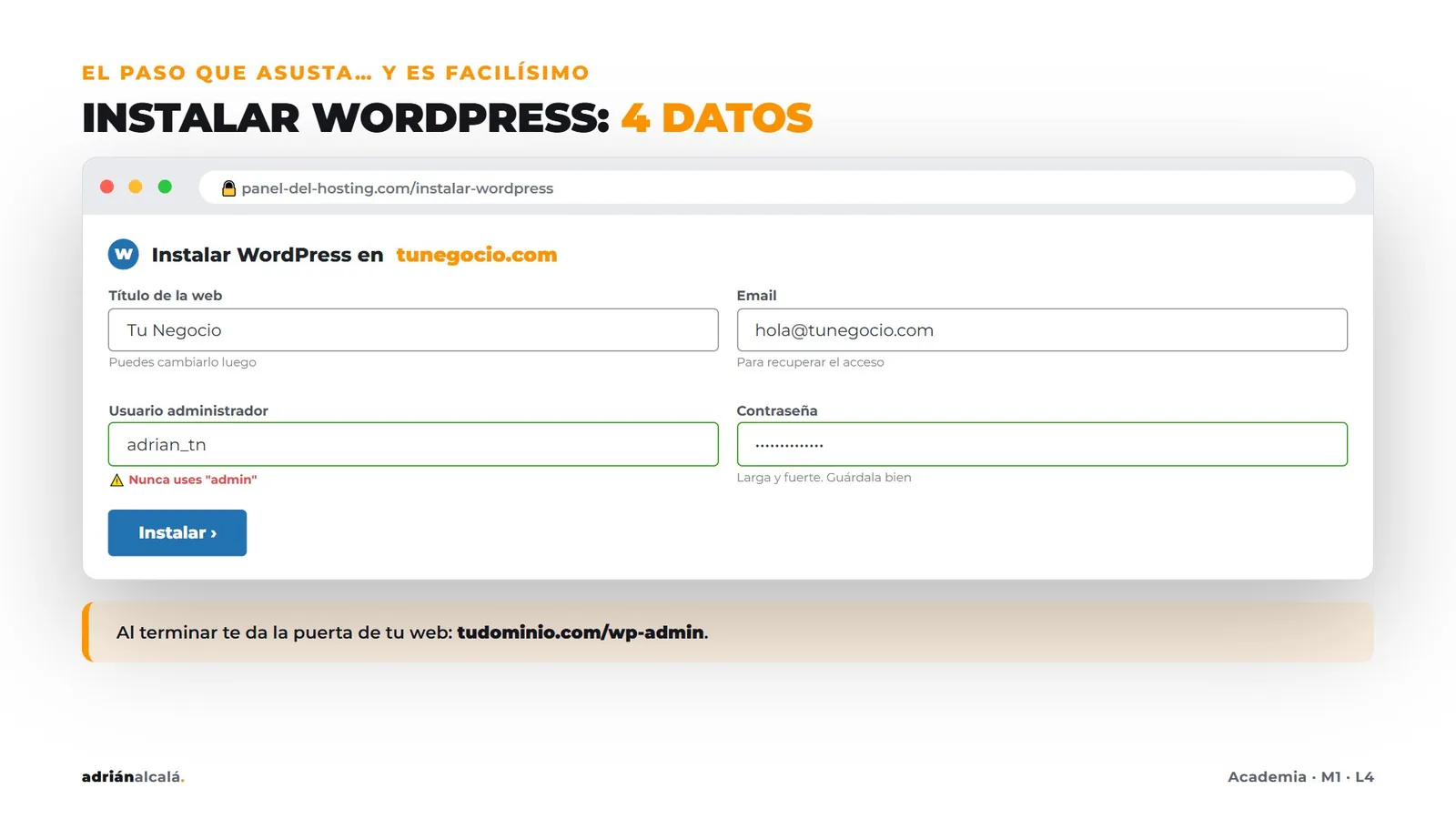
To have a website you need three things: a domain (the address, like yourbusiness.es), a hosting (the server where the website lives) and WordPress installed on that hosting. Most hosting providers install it in a couple of clicks, asking you for just a few pieces of information: the site name, a username, a password and an email.
If you prefer to practice without paying anything yet, you can also install WordPress on your own computer with tools designed for that, and move to a real hosting when you have something to publish.
Stage 2: understand the dashboard
The WordPress dashboard seems complicated on the first day, but it boils down to a few sections that you will always use:
To get comfortable with the editor, start with something simple, like create a post in WordPress.
Stage 3: design with Elementor
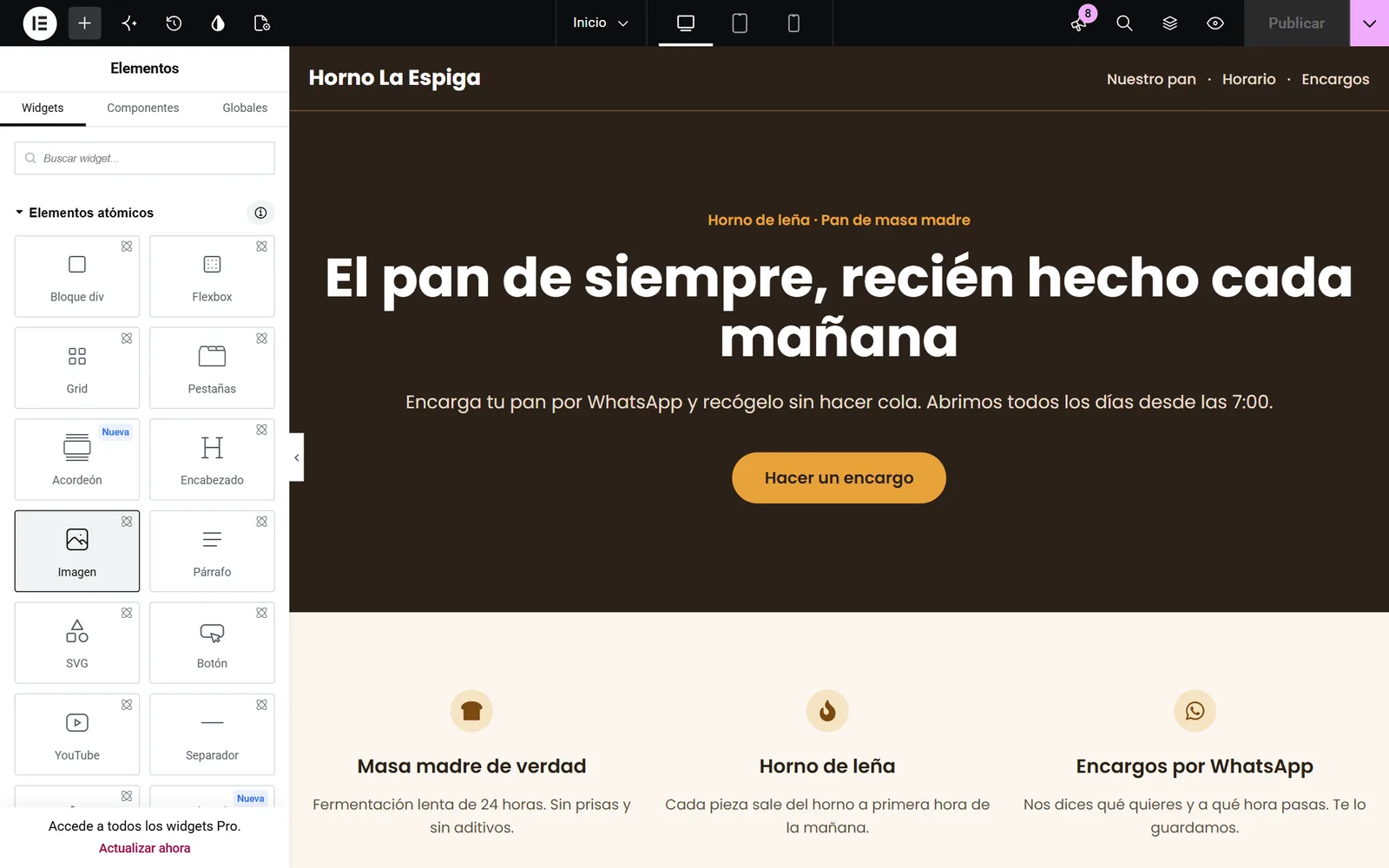
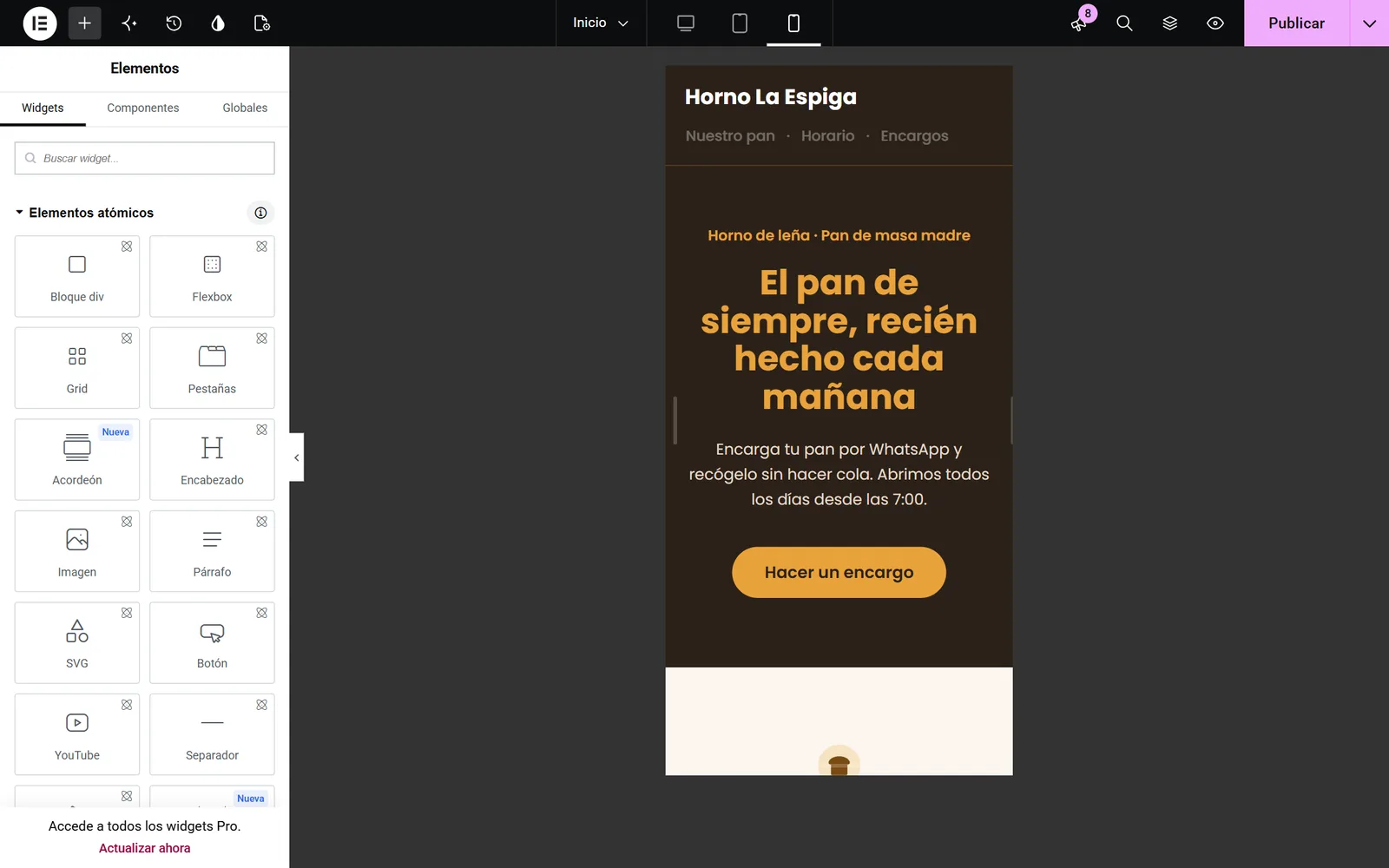
Elementor is a visual builder: you design the page by dragging blocks and you see the result as you work. The basic flow is always the same:
- Install Elementor from Plugins › Add new: search, install and activate.
- Drag the blocks from the panel to the page: titles, images, buttons.
- Change texts and colors directly on the page.
- Review the mobile view and, when it's ready, click «Publish».
Stage 4: the pages every website needs
Stage 5: publish and launch the website
Learn with a real project
Tutorials teach buttons; a project teaches decision-making. Choose a real website (yours, a family member's, or a business you know) and build it from start to finish while you follow this roadmap.
The plugins to get started
There's no need to install dozens. For a first professional website, it's enough to cover a few functions, each with a well-known and well-maintained plugin:
Before installing any plugin, check when it was last updated, how many active installations it has, and if it's compatible with your WordPress version.
Mistakes when learning WordPress
- Installing plugins for everything. Every plugin is code that needs to be maintained; install only what you need.
- Changing themes every week. Choose a lightweight one compatible with your builder, and focus on the content.
- Designing only for desktop. Most visits come from mobile.
- Skipping backups. The day something breaks, it's the only thing that saves you.
If your idea is to dedicate yourself to this, learning the tool is just the beginning. In how to set up a web design agency and in how to get web design clients you have the next steps.

Adrián Alcalá Web developer
Each lesson is applied the same day. It's the only way for what's learned to stick: by doing it on a real website.
Frequently Asked Questions
Do I need to know how to program to learn WordPress?
No. With WordPress and Elementor you can create complete websites without writing code. Knowing some HTML and CSS helps resolve details, but it's not a requirement to start.
Is WordPress free?
The software, yes: it's free and open source. What you pay for is the domain and hosting, and optionally some paid theme or plugin if you need it.
Elementor or the WordPress block editor?
Both work. The block editor is included; Elementor offers more visual control and is widely used on professional websites. To learn to design seeing the result instantly, Elementor is a good starting point.
Where do I start today?
Start with stage 1: install WordPress, on a host or on your computer, and create a simple homepage. From there, follow the roadmap in order.
Which theme do I choose to start with?
A lightweight one, well-maintained and compatible with your builder. If you're going to design with Elementor, a simple theme designed for it is enough: you'll do the design with the blocks, not the theme.
How long does it take to learn WordPress?
It depends on the time you dedicate to it and whether you practice with a real project. The important thing is not speed, but following an order: when you finish a stage with something published, the next one costs much less.
Learn WordPress with a clear roadmap
In the Academy to learn how to create websites with WordPress, the first course goes from scratch to your first published website, with Elementor and AI, and continues with how to sell them. It hasn't opened yet: sign up for the waiting list and I'll notify you first.
To go deeper
Written by Adrián Alcalá
Web designer in Dénia. If you have any questions about what you have read, write to me.