

Un plugin desactualizado, un certificado que caduca, un formulario que deja de enviar sin avisar. Lo normal es enterarse por un cliente, semanas después. WordPress es fiable, pero no se mantiene solo: necesita revisiones periódicas para seguir siendo rápido, seguro y útil. Esta es una checklist de mantenimiento de WordPress ordenada por frecuencia, para que sepas qué revisar cada semana, cada mes y cada trimestre.
The essentials in 30 seconds
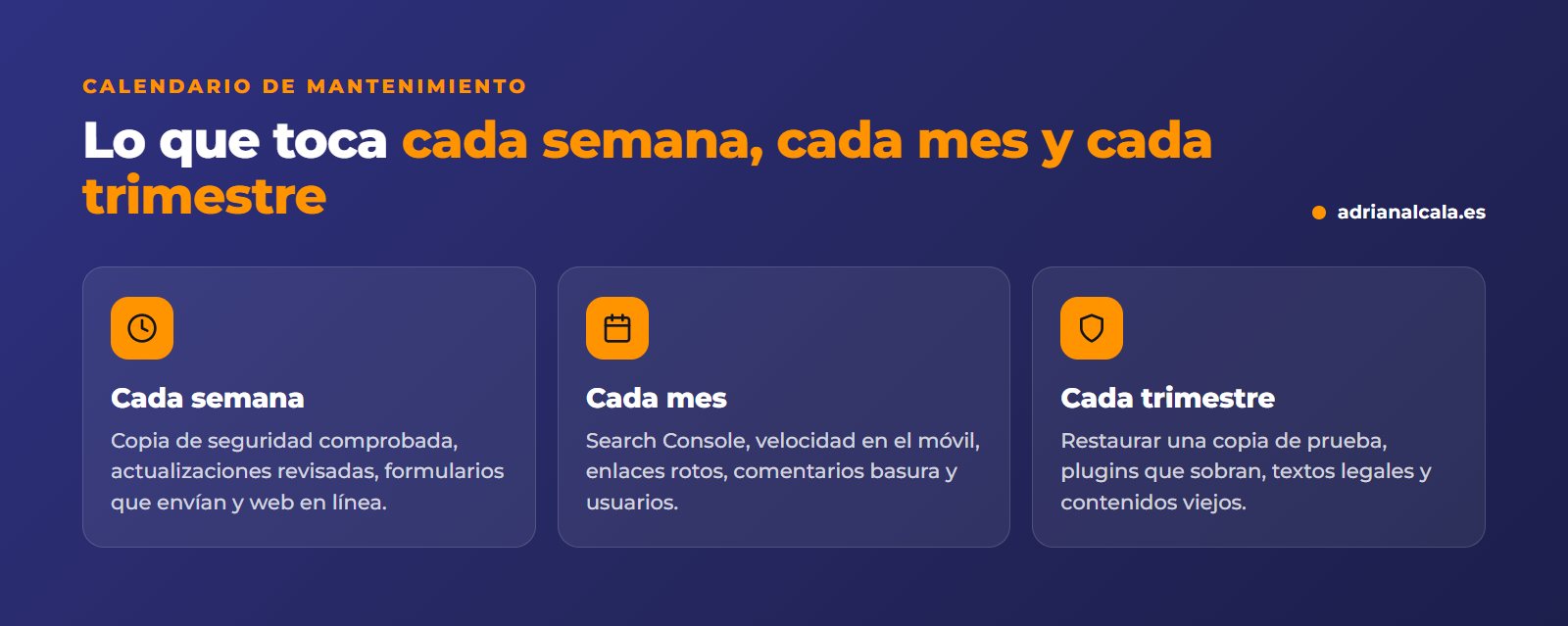
- Cada semana: copia de seguridad, actualizaciones revisadas y comprobar que la web y los formularios funcionan.
- Cada mes: Search Console, velocidad, enlaces rotos y usuarios con acceso.
- Cada trimestre: restaurar una copia de prueba, limpiar plugins y revisar contenidos y textos legales.
- Una copia que nunca se ha restaurado no garantiza nada.
In this article
- Por qué WordPress necesita mantenimiento
- Cada semana: that everything keeps working
- Cada mes: health, speed, and access
- Cada trimestre: cleaning and prevention
- How to update without breaking the website
- If something breaks after updating
- Signs that your WordPress ask for help
- Do it yourself or delegate it?
- Frequently Asked Questions
- May your website doesn't stay alone
Por qué WordPress necesita mantenimiento
Tu web no es un folleto impreso: es software que funciona sobre un servidor. WordPress, el tema y cada plugin reciben actualizaciones con mejoras y, sobre todo, con security fixes. At the same time, the server updates its PHP version, browsers change, and Google adjusts what it considers a good website. If no one looks, the gap between your website and everything else grows every month, until something breaks.
Cada semana: that everything keeps working
Cada mes: health, speed, and access
Cada trimestre: cleaning and prevention
The copy no one has tested
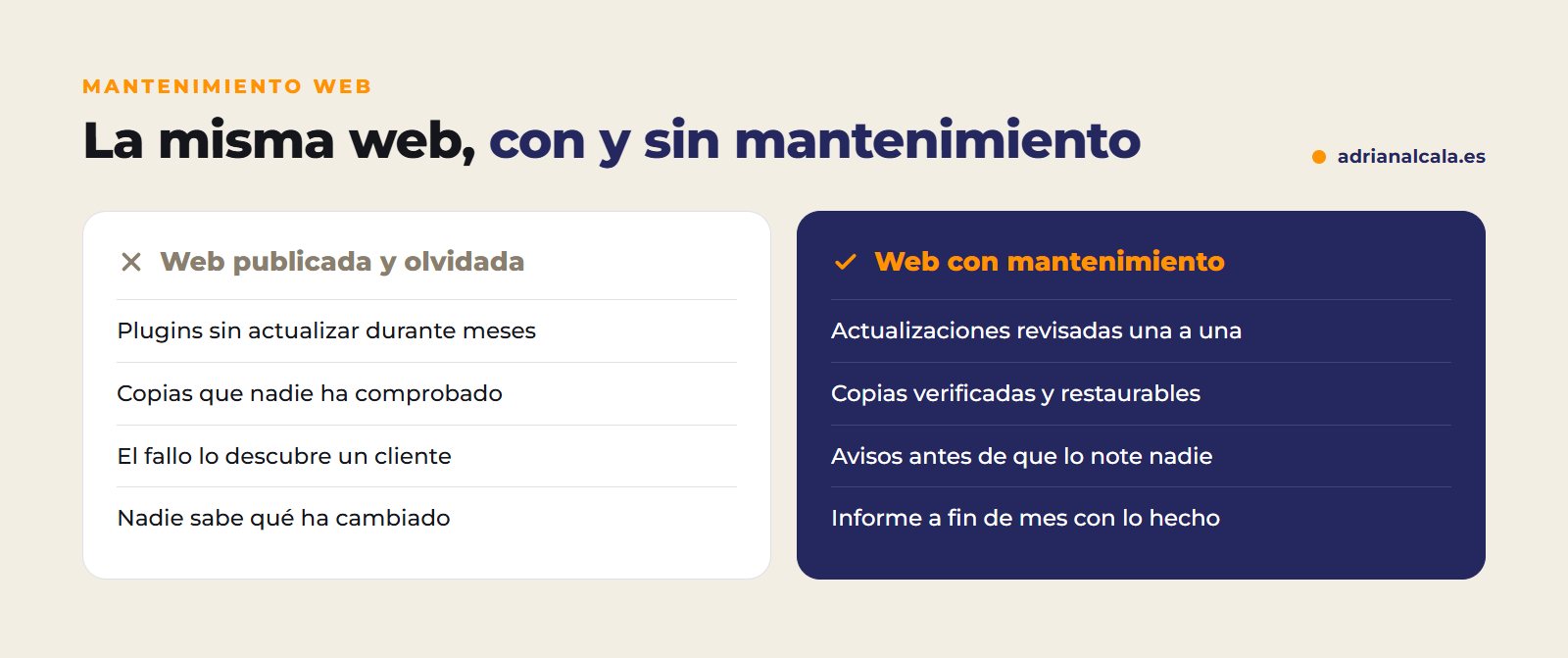
Many websites have automatic backups that no one has tried to restore. The day they are needed, they discover they were incomplete. A copy is only a copy when you know it can be recovered.
How to update without breaking the website
- Make a full copy just before: files and database.
- Read what changes in big updates, especially for theme, builder, and store.
- Update one by one the important plugins, not all at once: if something fails, you'll know which one it was.
- If possible, test first on a copy of the website (what is usually called a staging environment).
- Check what matters: homepage, forms, cart and checkout, mobile menu.
If something breaks after updating
Sometimes, even if you do everything right, an update clashes with another plugin or with the theme. It's not the end of the world if you keep calm and follow an order:
- Don't update anything else. The more changes, the harder it will be to know what failed.
- Identify what was updated just before the failure: it's usually the culprit.
- Deactivate that plugin from the dashboard or, if you cannot enter, by renaming its folder via FTP or from the hosting file manager.
- If it's not resolved, restore the backup you made before updating.
- Notify the plugin developer with what happened and wait for the next version before trying again.
If WordPress shows a "critical error" notice, it often also sends an email to the administrator with a recovery mode link to access the dashboard and deactivate what has failed.
Signs that your WordPress ask for help
If your website accumulates several of these signs and also looks old, it might no longer be worth maintaining it as is. In when to redesign a website you have how to decide. And if the problem is that you don't appear on Google, check why your business doesn't appear on Google.
Do it yourself or delegate it?
| You do it yourself | You delegate it | |
|---|---|---|
| Time | A while each week, more if something fails | None: you receive the report |
| If something breaks | You solve it yourself or seek help at that moment | Detected and fixed by whoever maintains it |
| Fits if… | Your website is simple and you manage it with WordPress | Your website is your source of clients or sales |

Adrián Alcalá Web maintenance and marketing
A website with a plan behind it is corrected, published, and measured every month. A published and forgotten website stays still while the competition does not.
Frequently Asked Questions
Can I activate automatic updates and forget about it?
For minor security updates, it's usually a good idea. For the theme, builder, or store, it's better to review them first: a major update can change how something important looks or works.
How often should backups be made?
It depends on how much your website changes. A corporate website that changes little can do well with weekly backups; a store with daily orders needs more frequent backups. The important thing is that they are off-server and can be restored.
What happens if I never update WordPress?
Over time, the website becomes more vulnerable, slower, and less compatible with the server and new plugins. And the more time passes, the more difficult and risky it is to update it all at once.
Does maintenance include content changes?
It depends on the service. There are technical-only maintenance plans and plans that also include content, SEO, or the Google Business Profile. Always ask what is included and what is not before hiring.
What is a staging environment?
It's a copy of your website, separate from what your clients see, where you can update or change things without risk. If everything works, you apply the changes to the real website; if something fails, no one has seen it. Many hosting providers offer it with one click.
How long does it take to maintain a WordPress website?
It depends on the size and number of plugins. A simple, well-configured website requires little time each week; a store with many plugins and daily orders needs more attention and more frequent reviews.
May your website doesn't stay alone
Con un monthly plan that includes your website's maintenance, someone watches over it, updates it, fixes it when it breaks, and sends you a report at the end of the month with what has been done. If you only need the technical part, you have the web support and maintenance.
To go deeper
Written by Adrián Alcalá
Web designer in Dénia. If you have any questions about what you have read, write to me.