You have a website made with WordPress and want to change something yourself: a text, a photo, a schedule. The first thing is to know how to log in to WordPress and navigate the panel, which can be daunting the first time due to the number of menus. In this guide, we teach you how to log in, what each part of the dashboard is, and what you shouldn't touch while you're learning.
The essentials in 30 seconds
- You log in by adding /wp-admin to your website address.
- The side menu is the map: pages, posts, media, appearance, plugins, and settings.
- For day-to-day use, you will almost always use Pages, Posts, and Media.
- What you don't know (plugins, settings, the theme), better not to touch it until you know what it does.
In this article
How to log in in the WordPress panel
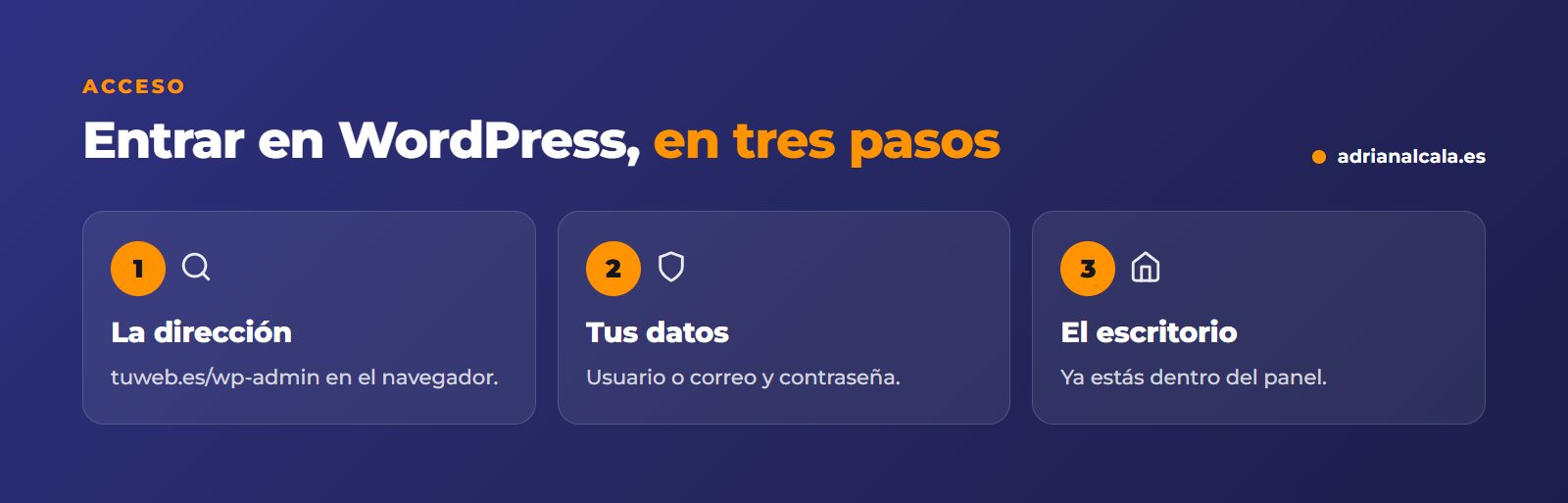
Open the browser and type your website address followed by /wp-admin. For example: yourbusiness.es/wp-admin. An access screen will appear with two fields: your username (or email) and your password.
Does your website not open with /wp-admin?
Some websites change the access address for security. If /wp-admin doesn't work, ask whoever made your website what yours is and save it in bookmarks.
The dashboard: what each part is
As soon as you enter, you arrive at the Dashboard. It has three areas you will always see:
The sections that you will use the most
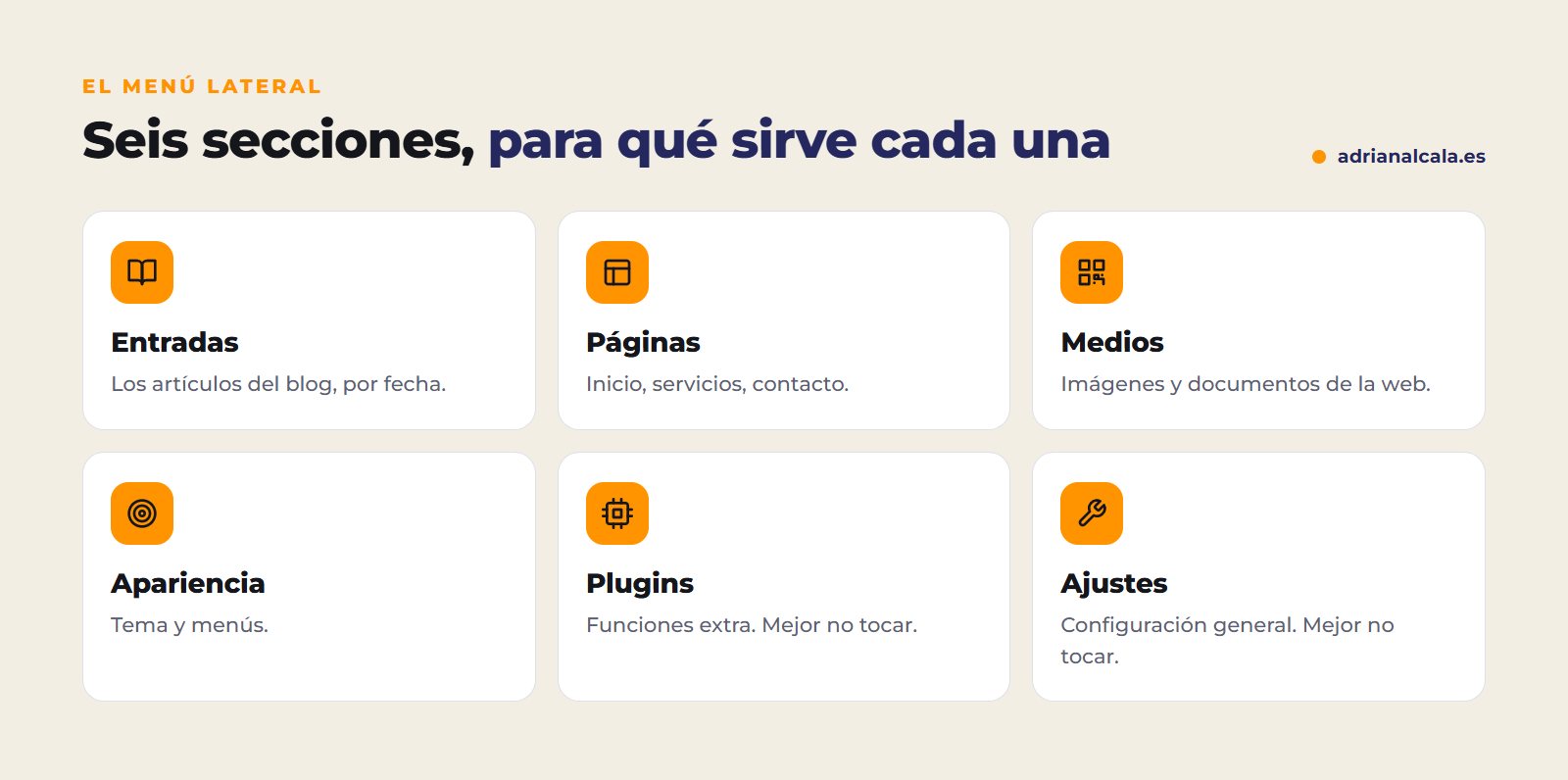
| Section | What it's for | Do you touch it at the beginning? |
|---|---|---|
| Posts | The blog articles, ordered by date | Yes |
| Pages | The fixed content: home, services, contact | Yes |
| Media | The library of images and documents | Yes |
| Appearance | Theme, menus and general appearance | Only the menus |
| Plugins | Extensions that add functions | Better not |
| Settings | Site name, addresses, reading | Better not |
Change your password and your visible name
If you were given the password by email or WhatsApp, change it on the first day. Go to Users › Profile, scroll down to «Account Management» and click «Set new password». WordPress suggests a secure one; you can save it in your browser's password manager.
On the same screen you can choose the display name in the articles you publish, so that a strange user like «admin» doesn't appear.
What is advisable not to touch while you learn
Frequently Asked Questions
Can I break the website by entering the panel?
No. Logging in and looking doesn't change anything. Changes are only applied when you click buttons like «Update», «Publish», «Activate» or «Save changes».
What do I do if I don't remember my username?
Try with your email: WordPress accepts email instead of username. If that doesn't work either, ask whoever managed the website.
Why does my menu have sections that don't appear here?
Each plugin can add its own section (for example, WooCommerce, Elementor or the SEO one). The basic ones you see in this guide are on all WordPress websites.
Can I log in from my mobile?
Yes, the panel adapts to mobile. For small changes it's fine; for calmly editing pages, a computer is better.
Do you prefer that we handle it?
If you don't have time to learn the panel, we take care of the changes, updates and backups of your website.
Keep learning

Written by Adrián Alcalá
Web designer in Dénia. If you have any questions about what you have read, write to me.