


Images are what weigh the most on a website, and also what is most noticeable when they are bad: blurry, cropped, or so heavy that the page takes a long time to load. Knowing upload images to WordPress well-prepared is one of the most useful things you can learn. In this guide, we explain how to prepare them, upload them to the Media library, and place them on your pages.
The essentials in 30 seconds
- Before uploading, reduce the size: an untouched mobile photo weighs too much.
- Give it a clear file name, without spaces or accents.
- Upload it in Media › Add new or directly from the Image block.
- Fill in the alternative text: describe the image for those who cannot see it and for Google.
In this article
Prepare the image before uploading it
This is the step almost everyone skips, and the one that makes the biggest difference. A photo freshly taken with a mobile phone is usually much larger than what a website needs.

Upload the image to the Media library
The Media library is where WordPress stores all the images and documents of your website. There are two ways to upload:
Fill in the alternative text
When selecting an image in Media, on the right you will see several fields. The important one is the alternative text: a short phrase describing what is seen. Screen readers for visually impaired people read it, and Google uses it to understand the image.
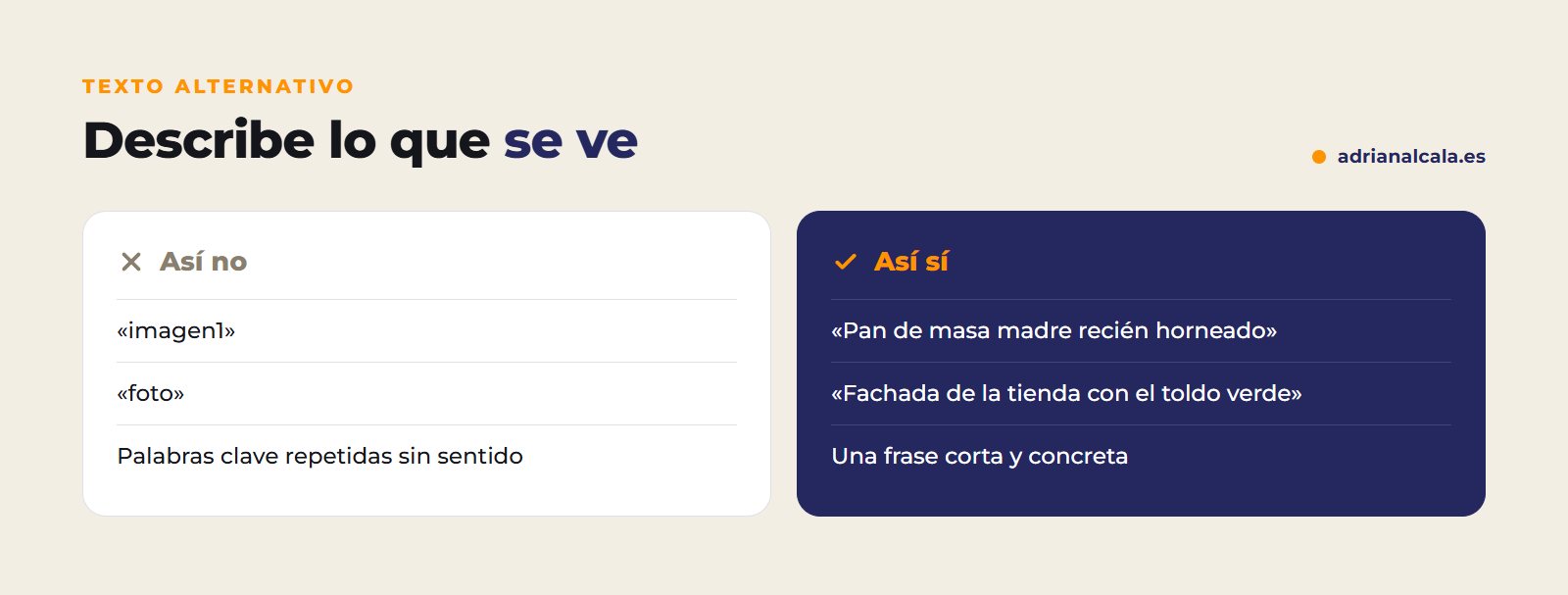
The title and description are optional
WordPress also lets you add a title, caption, and description. The one that truly matters is the alternative text; the caption only if you want a photo caption to appear below the image.
Place the image on a page
With the page open in the editor, add a block Image and click «Media Library» to choose one you've already uploaded. In the block toolbar you can align it, and in the right panel choose the size or add a link. Click Update to save the change.
Common errors which should be avoided
Frequently Asked Questions
What maximum size can I upload?
Your hosting provider sets it, and you see it in Media › Add New («Maximum file size»). But just because you can upload something large doesn't mean you should: prepare the image beforehand.
Can I change an image without changing the page?
Yes: in the Image block, click «Replace» and choose the new one. The rest of the page remains the same.
Why is my image cropped?
Many themes and blocks crop images to a fixed proportion, especially on homepages and listings. Try an image with a similar proportion to the space where it goes.
Do I need a plugin to optimize images?
It helps, but it's not essential if you prepare the images well before uploading them. On websites with many photos, an optimization plugin saves a lot of work.
Is your website is slow?
If you suspect that images or anything else are making your website slow, we'll review it for you and tell you in writing what to improve.
Keep learning

Written by Adrián Alcalá
Web designer in Dénia. If you have any questions about what you have read, write to me.